> ## Documentation Index
> Fetch the complete documentation index at: https://docs.tortus.ai/llms.txt
> Use this file to discover all available pages before exploring further.
# Consultations
> Start consultations across audio, face-to-face, and live recording modes.
A consultation is the core unit of work in TORTUS. You start one with `client.consultations.start(consultation, options?)`, choosing a **mode** that matches how the audio is captured. TORTUS then takes over the embedded view and emits events as the consultation progresses.
```ts theme={null}
const consultation = await client.consultations.start(config, options);
console.log('Started:', consultation.reference);
```
The `options` argument is optional and currently supports `returnTo`, the screen to show when the consultation completes:
```ts theme={null}
{
returnTo: 'home';
} // or "standby"
```
## Modes
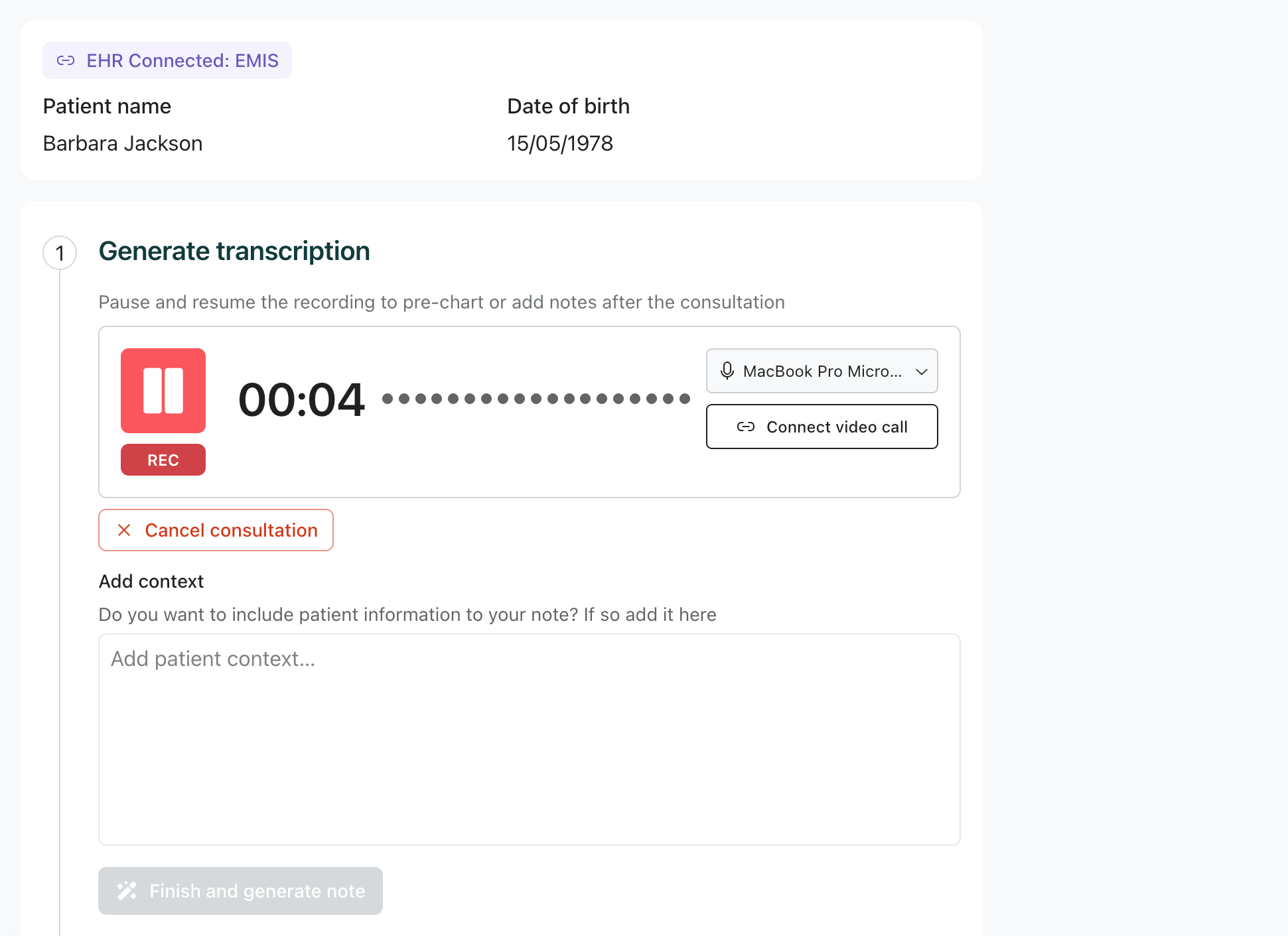 For in-person consultations recorded live in the embedded app.
```ts theme={null}
const consultation = await client.consultations.start(
{
mode: "FACE_TO_FACE",
patient: { name: "John Doe", dateOfBirth: "1975-08-22" },
integration: { system: "CERNER" },
},
{ returnTo: "standby" },
);
```
For in-person consultations recorded live in the embedded app.
```ts theme={null}
const consultation = await client.consultations.start(
{
mode: "FACE_TO_FACE",
patient: { name: "John Doe", dateOfBirth: "1975-08-22" },
integration: { system: "CERNER" },
},
{ returnTo: "standby" },
);
```
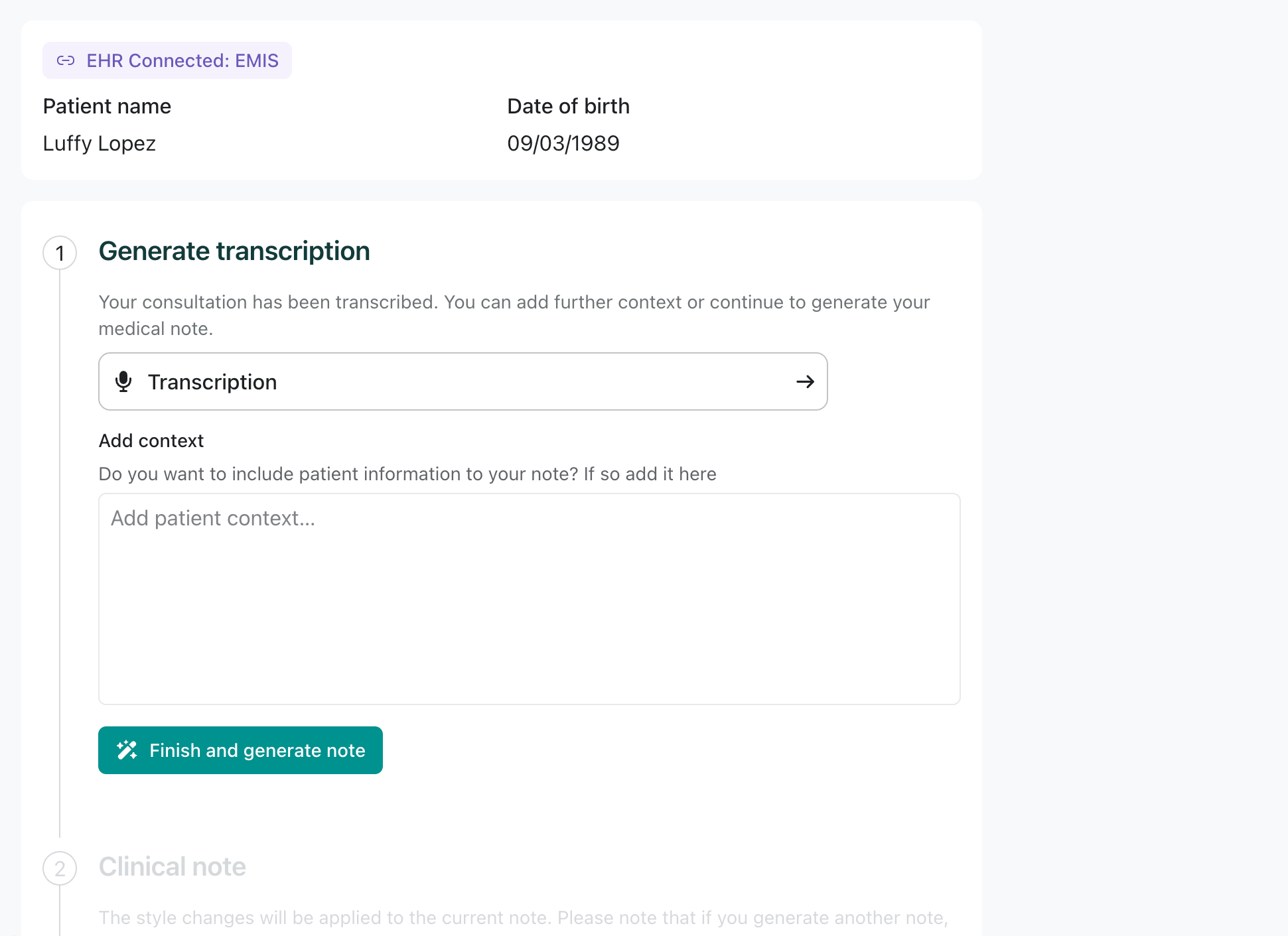 Process an existing recording by passing its URL. Transcription begins immediately.
```ts theme={null}
const consultation = await client.consultations.start(
{
mode: "AUDIO_FILE",
audio: { url: "https://your-domain.com/consultation-recording.mp3" },
patient: {
name: "Jane Smith",
dateOfBirth: "1985-03-15",
identifier: { label: "NHS Number", value: "1234567890" },
},
metadata: { consultationId: "cons_123", providerId: "dr_smith" },
integration: { system: "EMIS" },
},
{ returnTo: "home" },
);
```
Process an existing recording by passing its URL. Transcription begins immediately.
```ts theme={null}
const consultation = await client.consultations.start(
{
mode: "AUDIO_FILE",
audio: { url: "https://your-domain.com/consultation-recording.mp3" },
patient: {
name: "Jane Smith",
dateOfBirth: "1985-03-15",
identifier: { label: "NHS Number", value: "1234567890" },
},
metadata: { consultationId: "cons_123", providerId: "dr_smith" },
integration: { system: "EMIS" },
},
{ returnTo: "home" },
);
```
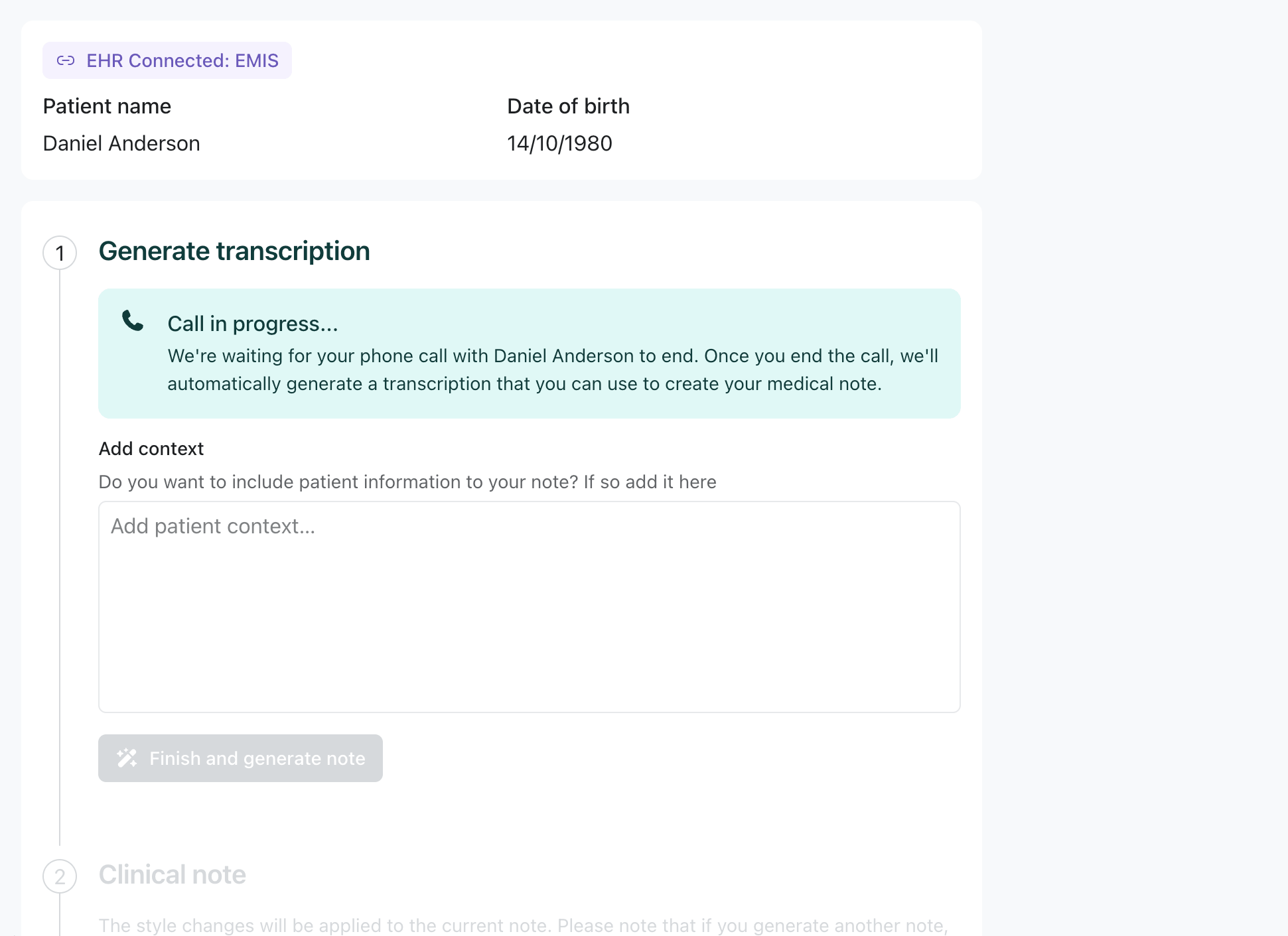 Capture audio live, optionally setting the audio source during the consultation.
```ts theme={null}
const consultation = await client.consultations.start({
mode: "LIVE_RECORDING",
patient: { name: "Sarah Wilson" },
customFields: { appointmentType: "follow-up", urgency: "routine" },
});
// You can update the audio source mid-consultation
await consultation.setAudio?.({ url: "https://your-domain.com/live-stream-url" });
```
## Patient details
The `patient` object identifies who the consultation is about. `name` is the common field; `dateOfBirth` and a typed `identifier` are optional but recommended.
```ts theme={null}
patient: {
name: "Jane Smith",
dateOfBirth: "1985-03-15",
identifier: { label: "NHS Number", value: "1234567890" },
}
```
You can also attach free-form `metadata` and `customFields` for your own correlation and workflow needs.
## EHR integrations
Set `integration` to tell TORTUS which clinical system the results should be approved and saved to. The chosen system drives the **"Approve & Save to …"** button and the **"EHR Connected"** badge.
| System | Display name | Description |
| ----------- | -------------- | -------------------------------------------- |
| `EMIS` | EMIS | EMIS Web EHR integration |
| `SYSTM_ONE` | SystmOne | TPP SystmOne EHR integration |
| `MEDICUS` | Medicus | Medicus EHR integration |
| `CERNER` | Cerner | Oracle Cerner EHR integration |
| `CUSTOM` | *(your label)* | Custom integration, requires a `label` field |
Set a default `integration` in [`loadTortus()`](/configuration) and every consultation inherits it
unless it provides its own.
### Custom integration
Use the `CUSTOM` system when your clinical system isn't listed. The `label` you provide is shown in the "Approve & Save to …" button. The "EHR Connected" badge is not shown for custom integrations.
```ts theme={null}
const consultation = await client.consultations.start({
mode: 'AUDIO_FILE',
audio: { url: 'https://your-domain.com/recording.mp3' },
patient: { name: 'Jane Smith' },
integration: {
system: 'CUSTOM',
label: 'Acme Health', // Required: shown in the UI
},
});
```
`label` is **required** when `system` is `'CUSTOM'`.
### Optional label for known systems
You can pass an optional `label` for a known system to customise the "Approve & Save to …" button text only. The "EHR Connected" badge still shows the system's default name.
```ts theme={null}
const consultation = await client.consultations.start({
mode: 'FACE_TO_FACE',
patient: { name: 'John Doe' },
integration: {
system: 'EMIS',
label: 'My GP Surgery', // Optional: overrides button text only
},
});
```
When `label` is omitted, the default system display name is used (e.g. "EMIS", "SystmOne").
## Next step
React to the consultation lifecycle and read the generated artifacts.
Capture audio live, optionally setting the audio source during the consultation.
```ts theme={null}
const consultation = await client.consultations.start({
mode: "LIVE_RECORDING",
patient: { name: "Sarah Wilson" },
customFields: { appointmentType: "follow-up", urgency: "routine" },
});
// You can update the audio source mid-consultation
await consultation.setAudio?.({ url: "https://your-domain.com/live-stream-url" });
```
## Patient details
The `patient` object identifies who the consultation is about. `name` is the common field; `dateOfBirth` and a typed `identifier` are optional but recommended.
```ts theme={null}
patient: {
name: "Jane Smith",
dateOfBirth: "1985-03-15",
identifier: { label: "NHS Number", value: "1234567890" },
}
```
You can also attach free-form `metadata` and `customFields` for your own correlation and workflow needs.
## EHR integrations
Set `integration` to tell TORTUS which clinical system the results should be approved and saved to. The chosen system drives the **"Approve & Save to …"** button and the **"EHR Connected"** badge.
| System | Display name | Description |
| ----------- | -------------- | -------------------------------------------- |
| `EMIS` | EMIS | EMIS Web EHR integration |
| `SYSTM_ONE` | SystmOne | TPP SystmOne EHR integration |
| `MEDICUS` | Medicus | Medicus EHR integration |
| `CERNER` | Cerner | Oracle Cerner EHR integration |
| `CUSTOM` | *(your label)* | Custom integration, requires a `label` field |
Set a default `integration` in [`loadTortus()`](/configuration) and every consultation inherits it
unless it provides its own.
### Custom integration
Use the `CUSTOM` system when your clinical system isn't listed. The `label` you provide is shown in the "Approve & Save to …" button. The "EHR Connected" badge is not shown for custom integrations.
```ts theme={null}
const consultation = await client.consultations.start({
mode: 'AUDIO_FILE',
audio: { url: 'https://your-domain.com/recording.mp3' },
patient: { name: 'Jane Smith' },
integration: {
system: 'CUSTOM',
label: 'Acme Health', // Required: shown in the UI
},
});
```
`label` is **required** when `system` is `'CUSTOM'`.
### Optional label for known systems
You can pass an optional `label` for a known system to customise the "Approve & Save to …" button text only. The "EHR Connected" badge still shows the system's default name.
```ts theme={null}
const consultation = await client.consultations.start({
mode: 'FACE_TO_FACE',
patient: { name: 'John Doe' },
integration: {
system: 'EMIS',
label: 'My GP Surgery', // Optional: overrides button text only
},
});
```
When `label` is omitted, the default system display name is used (e.g. "EMIS", "SystmOne").
## Next step
React to the consultation lifecycle and read the generated artifacts.